FOR PARENTS
How to set up KindChat for your child
This guide takes you through the set-up step by step: first for yourself, then for your child under 16, and finally for the class group. It takes about 15 minutes. The pictures use example names: Anna (parent), Leo (child) and Mia (another parent). Tap a picture to see it full size.
What does KindChat cost?
The first 30 days: everything included. When you sign up, your Care Circle starts with 30 days free. In that time you set everything up: your child's code, groups, quiet hours for groups and reusable invite codes.
After that, you decide. With a subscription you keep using everything; prices are in the App Store and on Google Play. Without one, KindChat carries on free and everything you set up stays: your child stays in your Care Circle, your approvals keep working, and groups and quiet hours stay.
Always free, for everyone: chats, photos, calls, creating and joining groups, your own quiet hours, and protection from insults, harassment, scams and nude images.
1. Install the app
Search for KindChat in the App Store (iPhone) or on Google Play (Android) and install the app. KindChat runs on iOS 15.1 and Android 10 or later.
2. Sign up
- Open KindChat and tap Let's go.
- Enter your name and tap Continue.
- Choose your country code on the left and enter your mobile number without it.
- At How old are you? choose 16 and older and tap Continue.
- Enter the 6-digit code from the text message and tap Continue.
- Allow notifications so you see new messages and requests.
- KindChat briefly shows what it catches. Tap See how it works and then Continue.
- At Your Care Circle is active tap Later. You create your child's code in step 3.
- Tap Start chatting. Done.
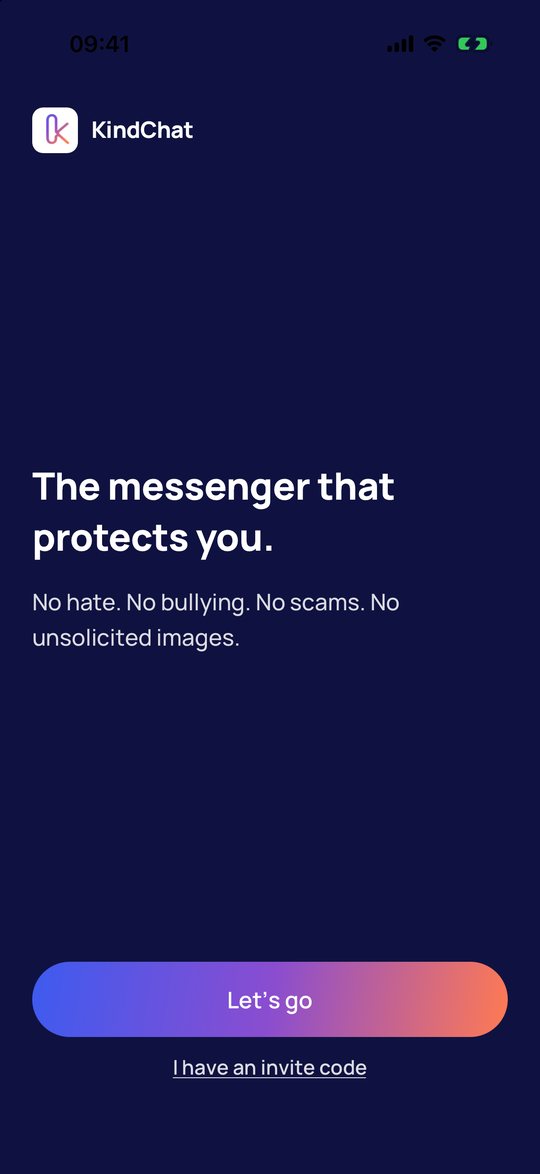
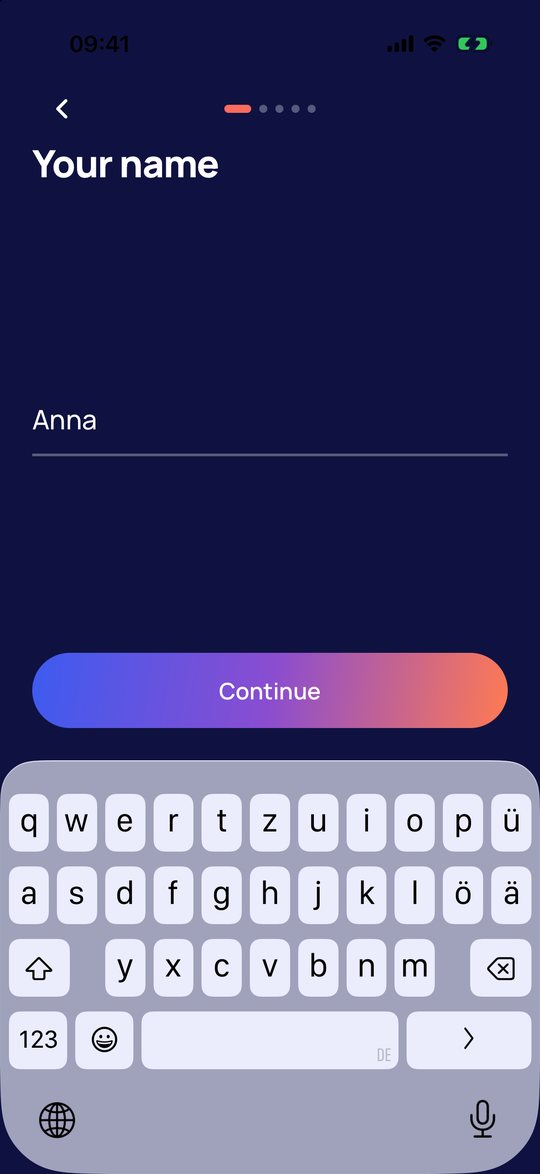
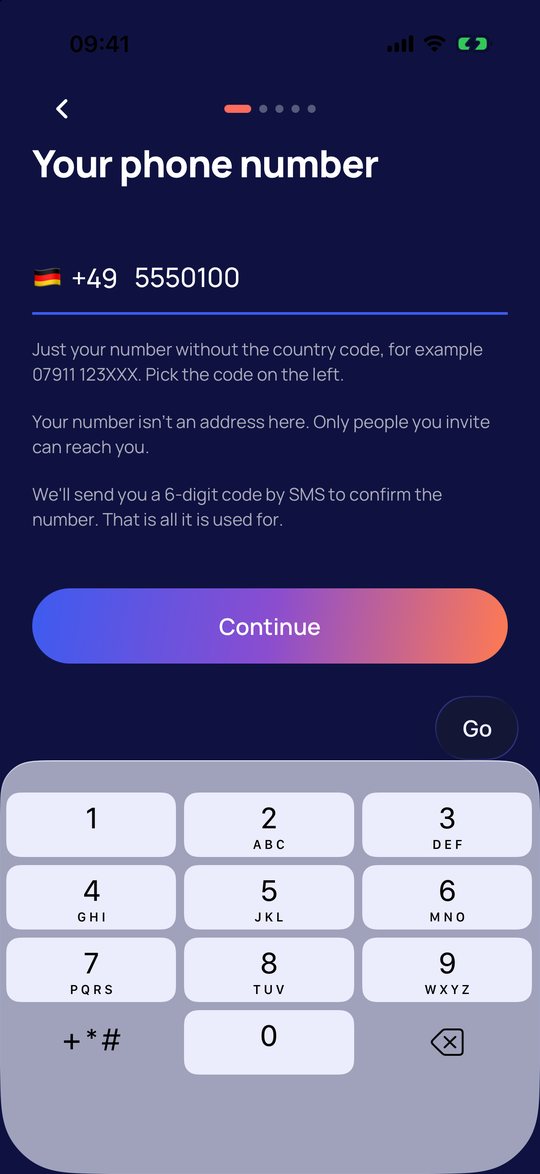
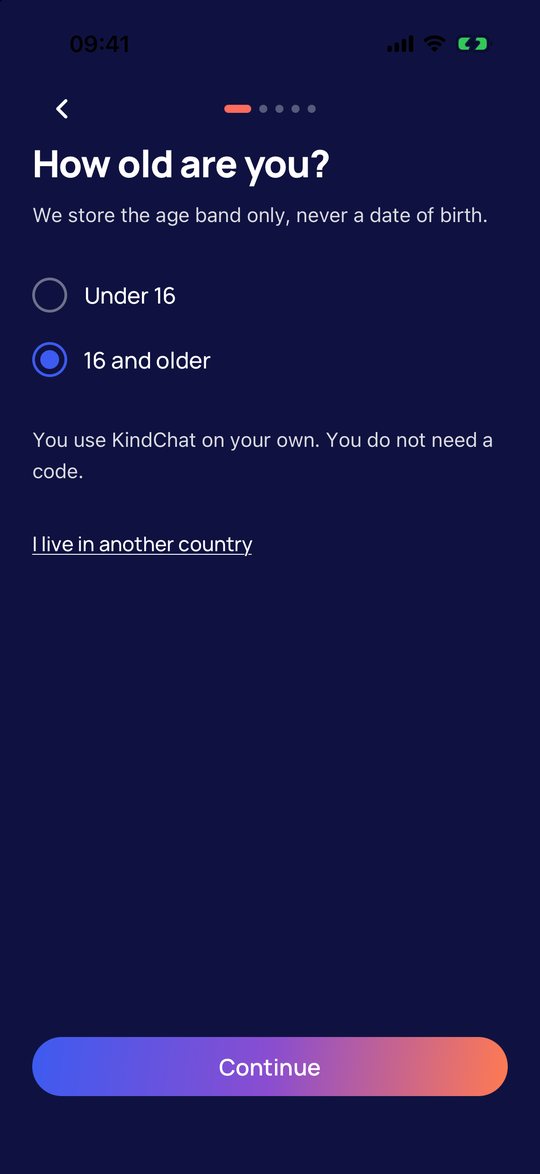
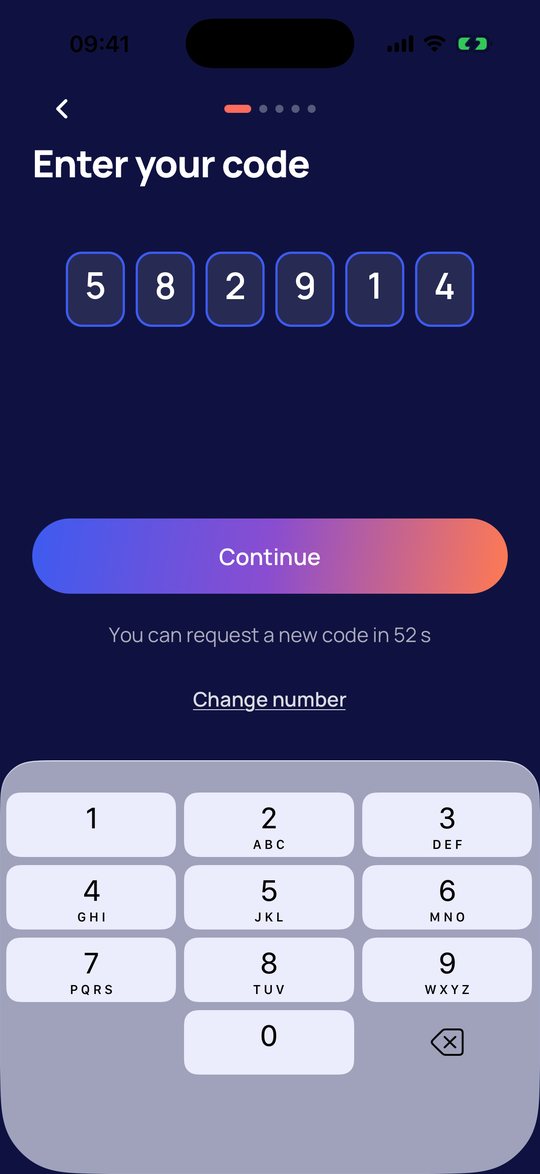
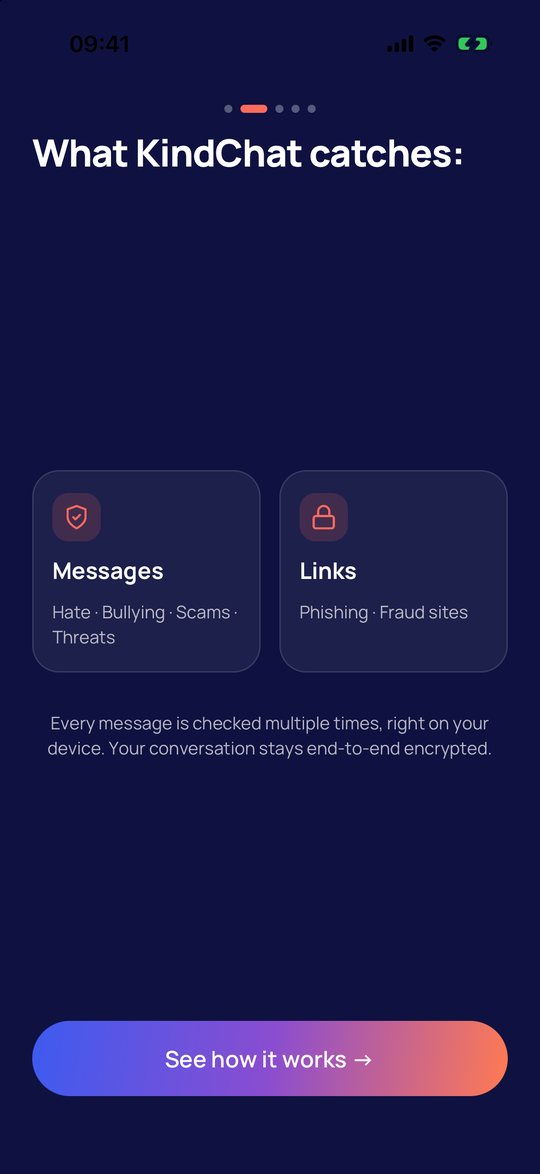
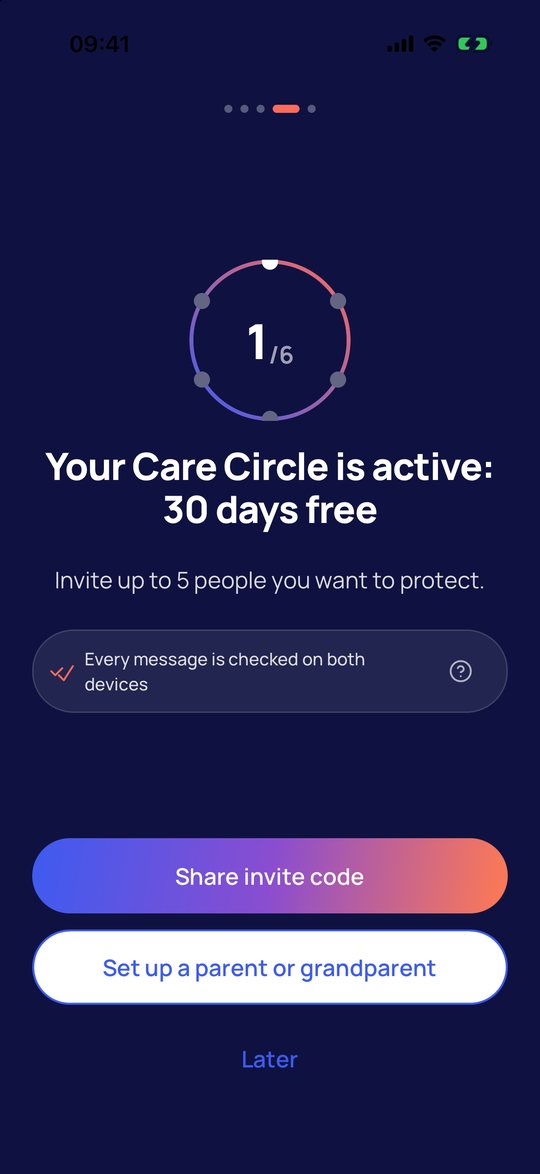
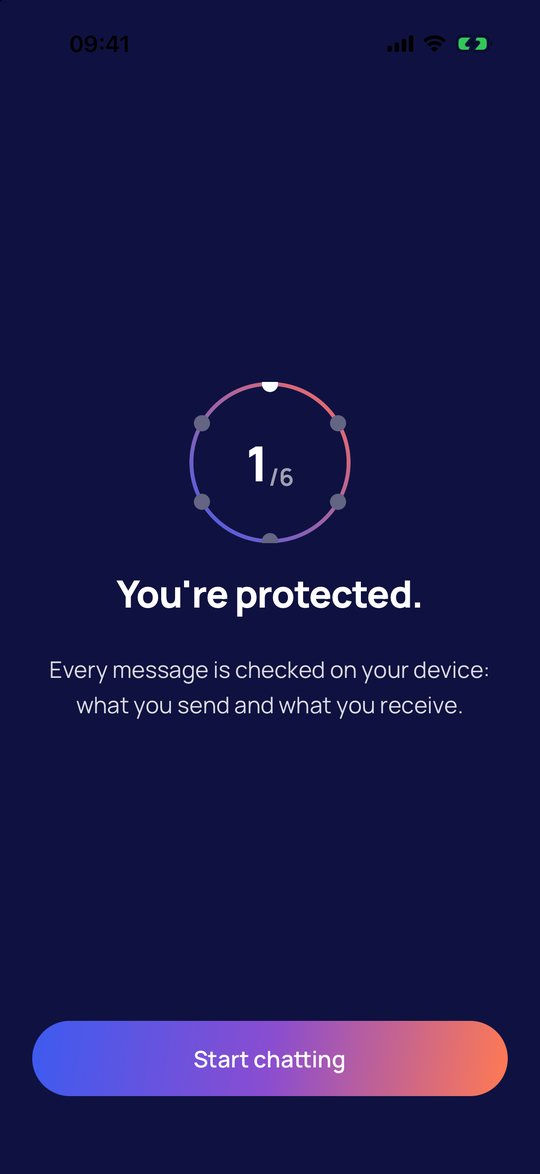
KindChat only stores your age group, never a date of birth. Your number is not an address: only the people you invite can reach you. The buttons have exactly the names used in this guide.
3. Create a code for your child
- Open Settings and, under Protection, tap Care Circle.
- Tap Code for my child.
- The first time, confirm that you are an adult and tap Continue.
- Tick I am the legal guardian ….
- Tap Code for my child. Your phone's share menu opens.
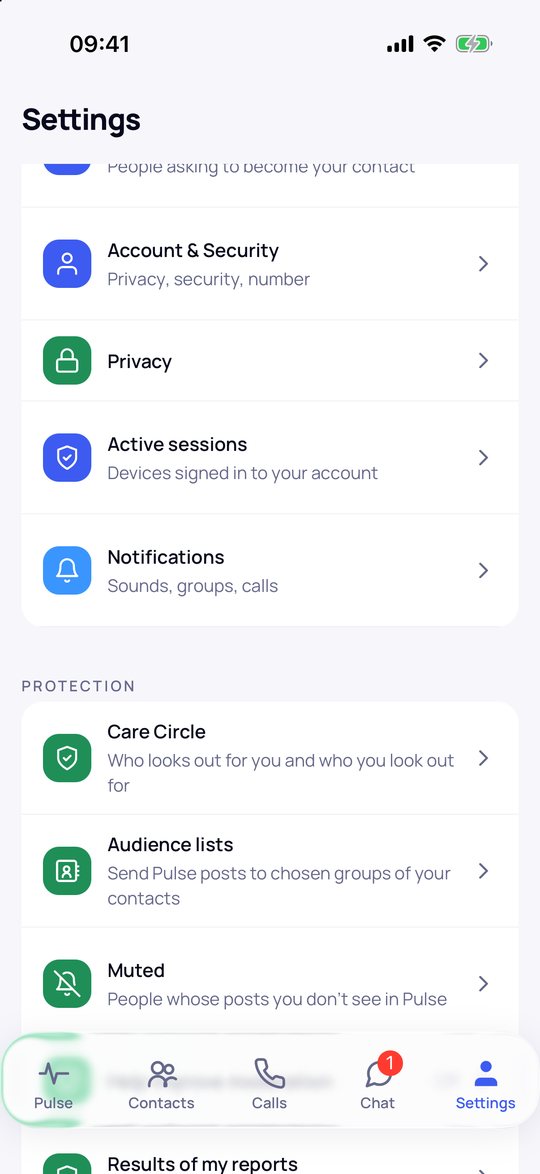
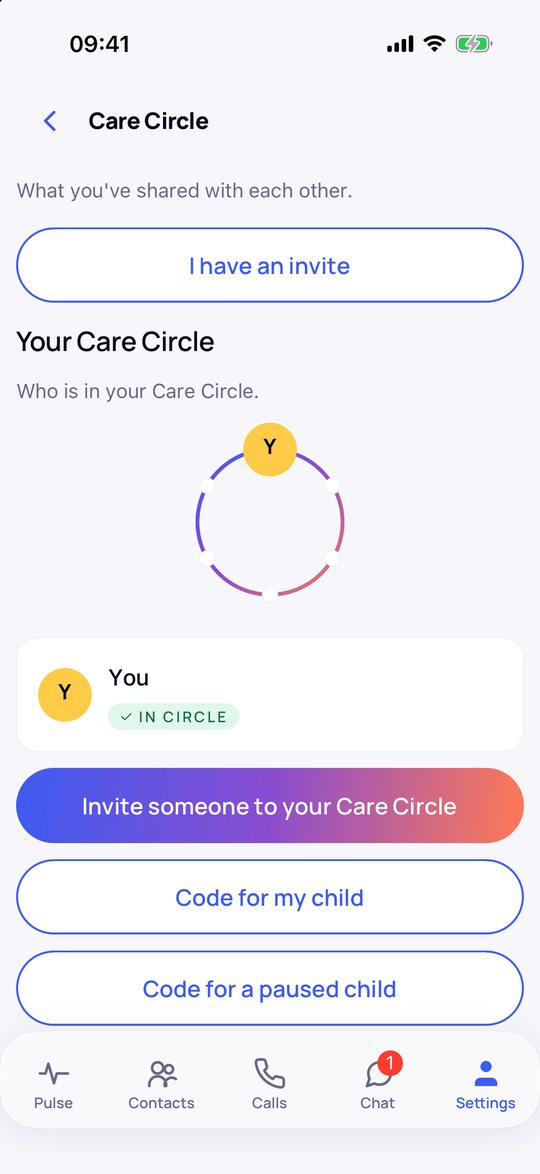
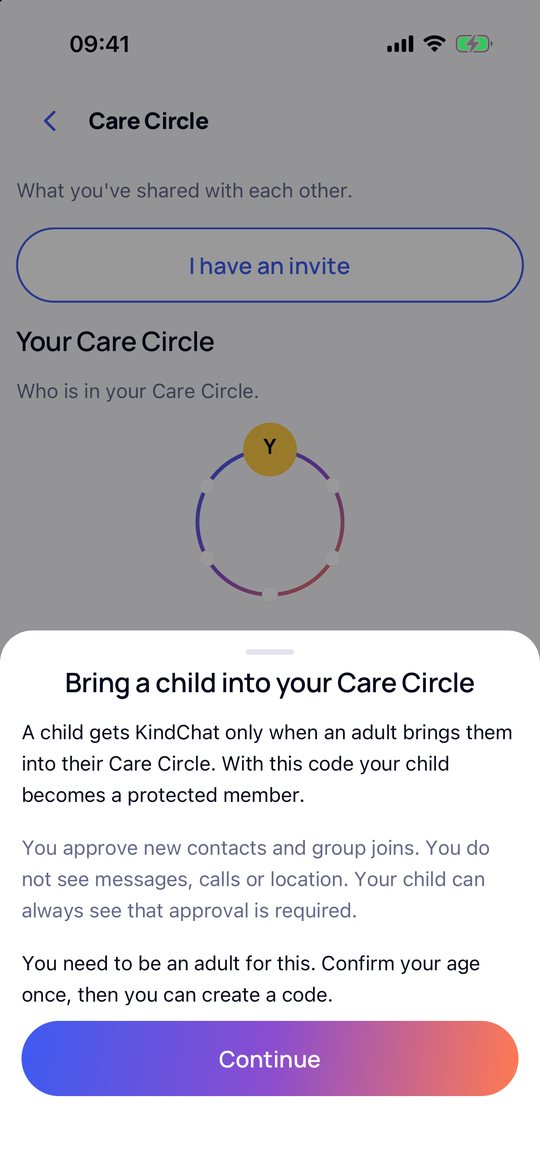
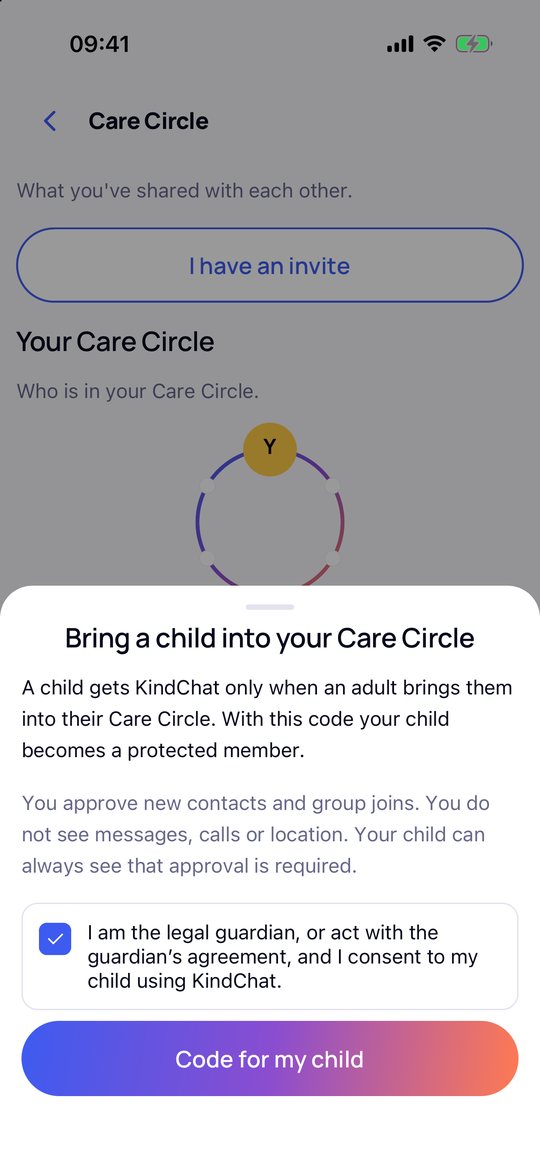
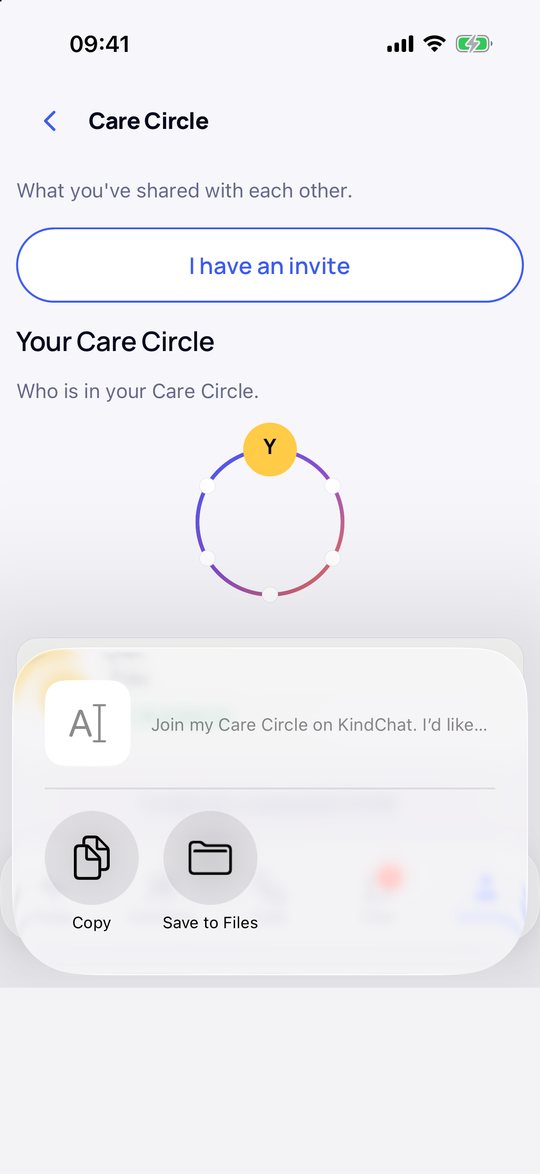
The code has 6 characters, is valid for 14 days and works for exactly one child. A Care Circle holds you and up to 5 other people.
4. Give the code to your child
In the share menu, choose how the code gets to your child: by text message, WhatsApp, email, AirDrop or any other app. The message invites your child to your Care Circle and contains the link to the app and the code. Send it to yourself as well, then you can read the code out to your child.
5. Your child signs up
It is best to sit down together. On your child's phone:
- Install KindChat and tap Let's go.
- Enter your child's name and mobile number.
- At the age group, choose Under 16. A field for the code appears below.
- Enter the 6-character code from step 4 and tap Continue.
- Enter the code from the text message, allow notifications and tap through the short introduction.
- Tap Start chatting, read the note about data and tap Got it.
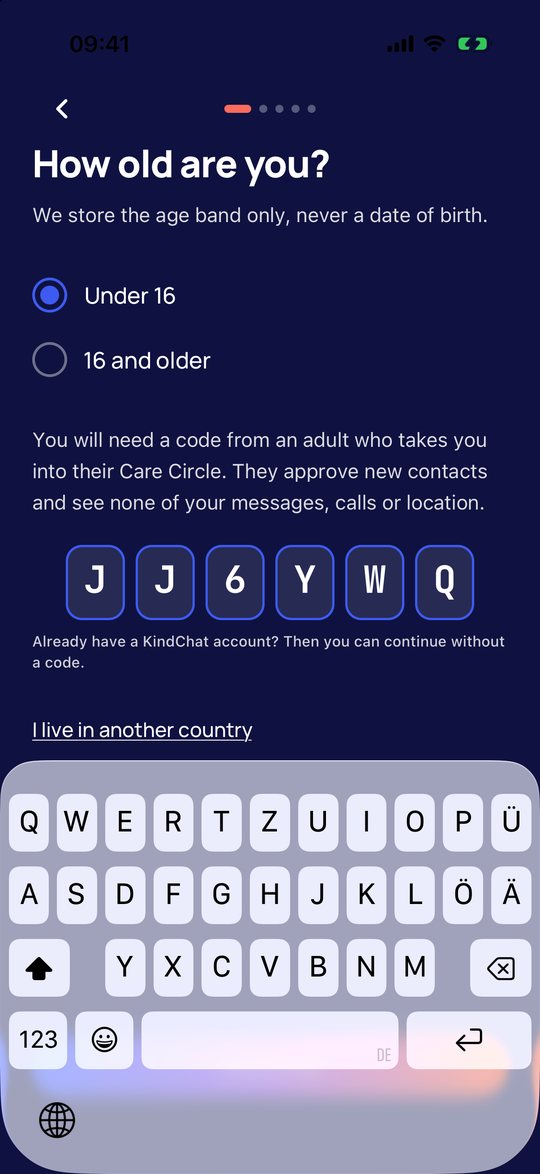
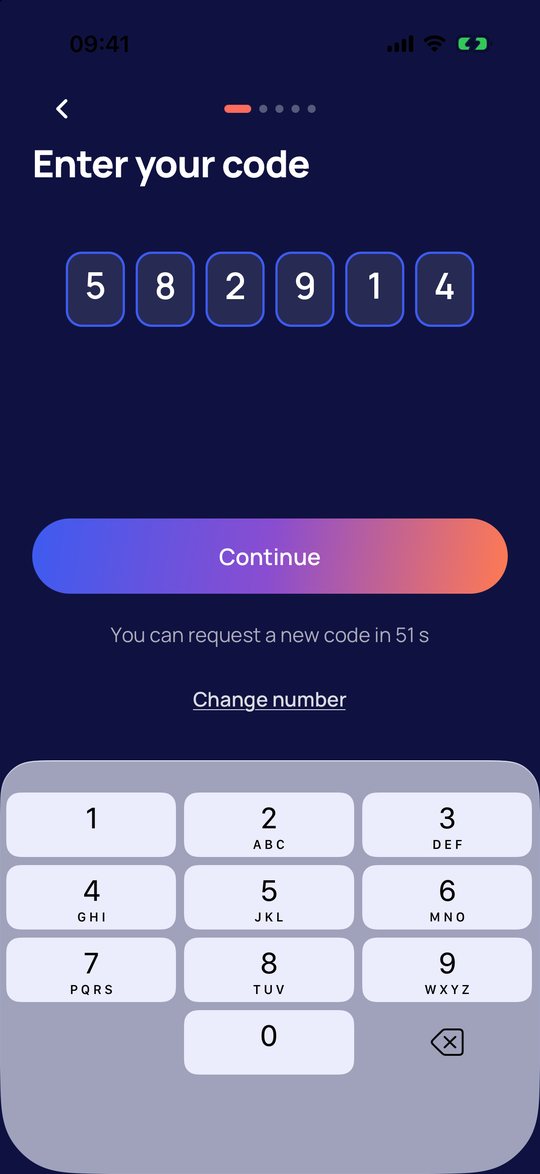
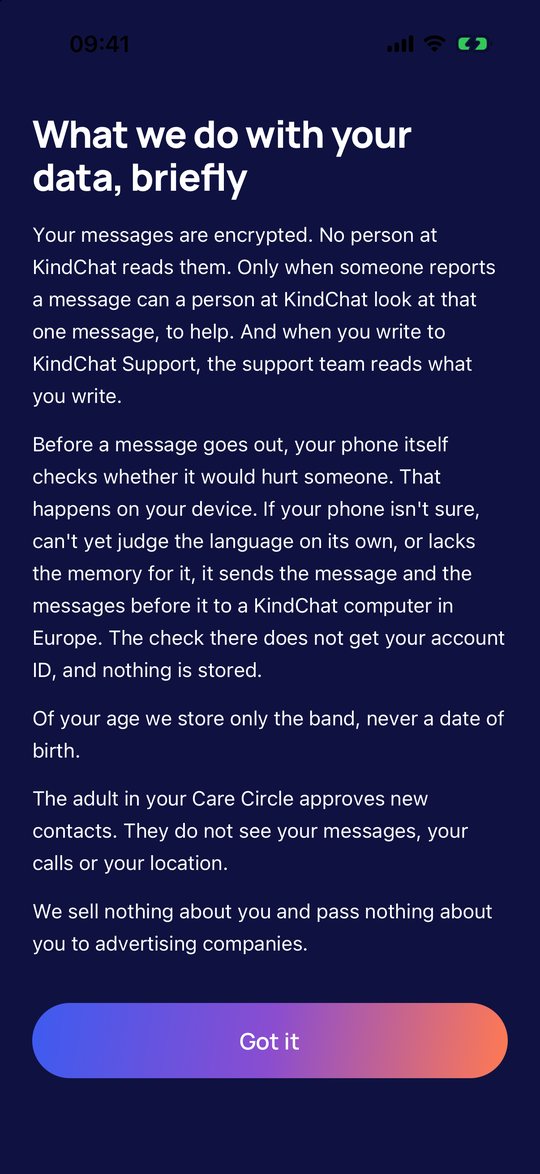
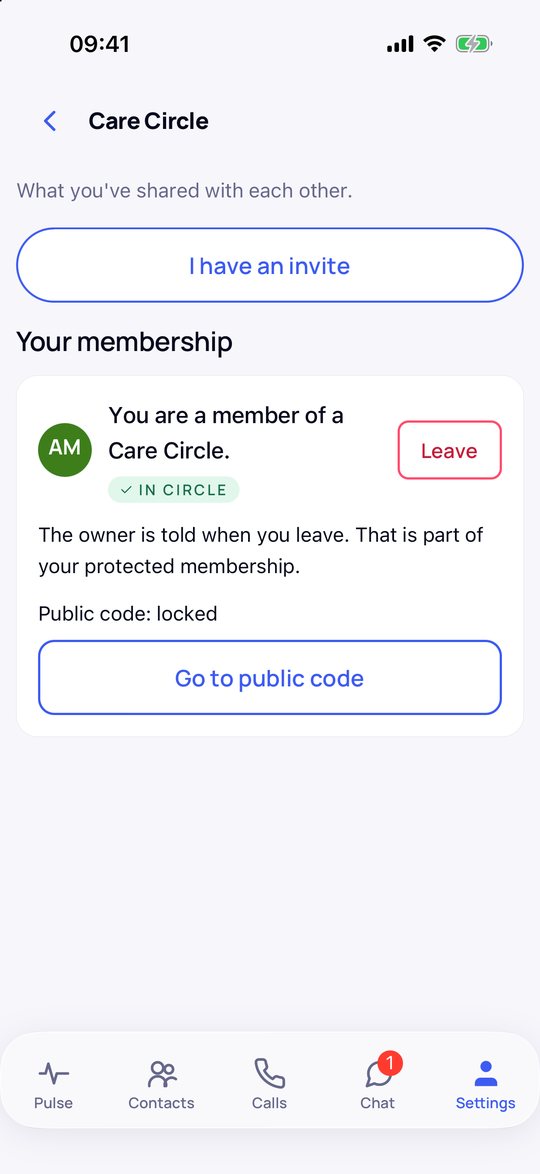
Afterwards your child sees under Settings → Care Circle: You are a member of a Care Circle.
6. What you see and what you don't
You see who your child wants to add as a contact and which group they want to join, with the name, who invited them and the number of members. You don't see messages, photos, calls or location; KindChat has no location feature. Your child cannot buy anything or create Care Circle codes.
Your child can leave the Care Circle at any time with Leave. Their account is then paused straight away. If you don't bring them back within 90 days, the account is deleted. With Code for a paused child you bring them back free of charge.
7. Add contacts
KindChat does not upload your address book and does not suggest anyone. Contacts are only made through codes that you pass on yourself. At the top of the Contacts tab there are four buttons for this.
- Tap My code and then Share.
- Send the invitation by text message, WhatsApp, email or any other app. With Copy you can paste the code yourself, for example into an email to the class.
- Anyone who receives a code taps Enter code and then Redeem code.
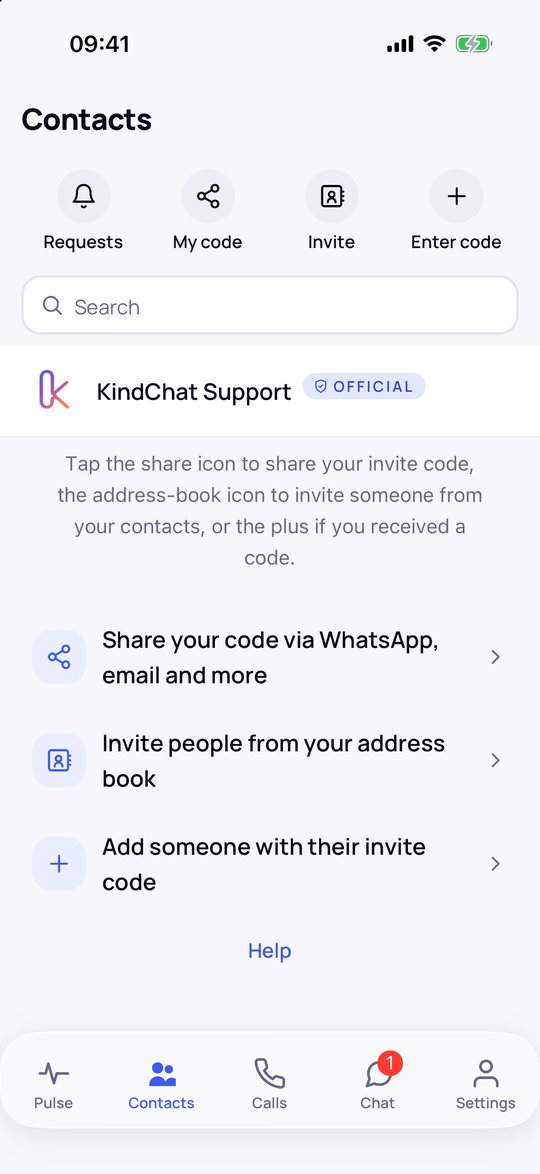
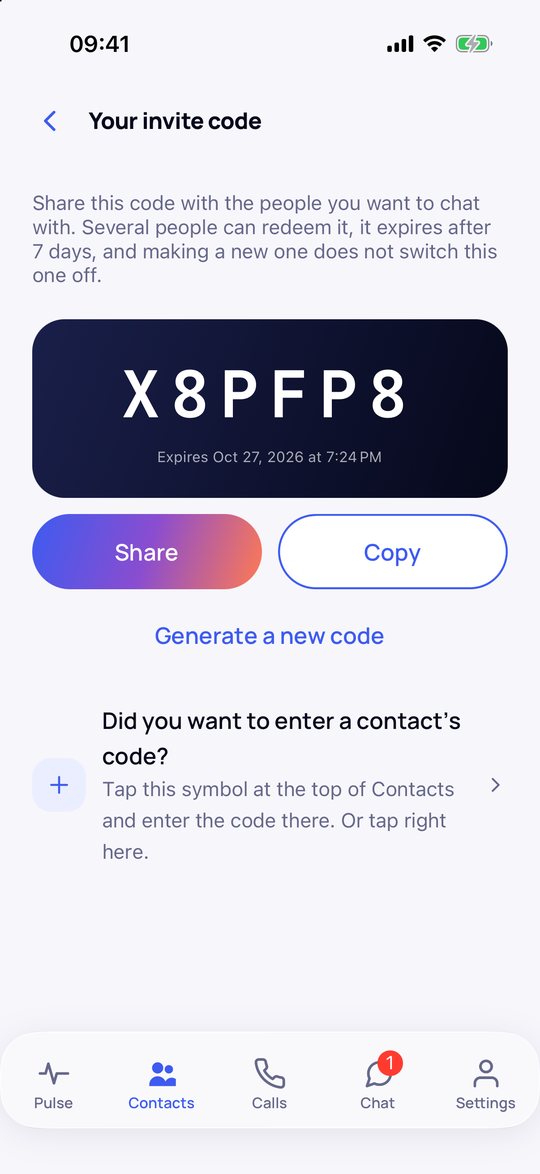
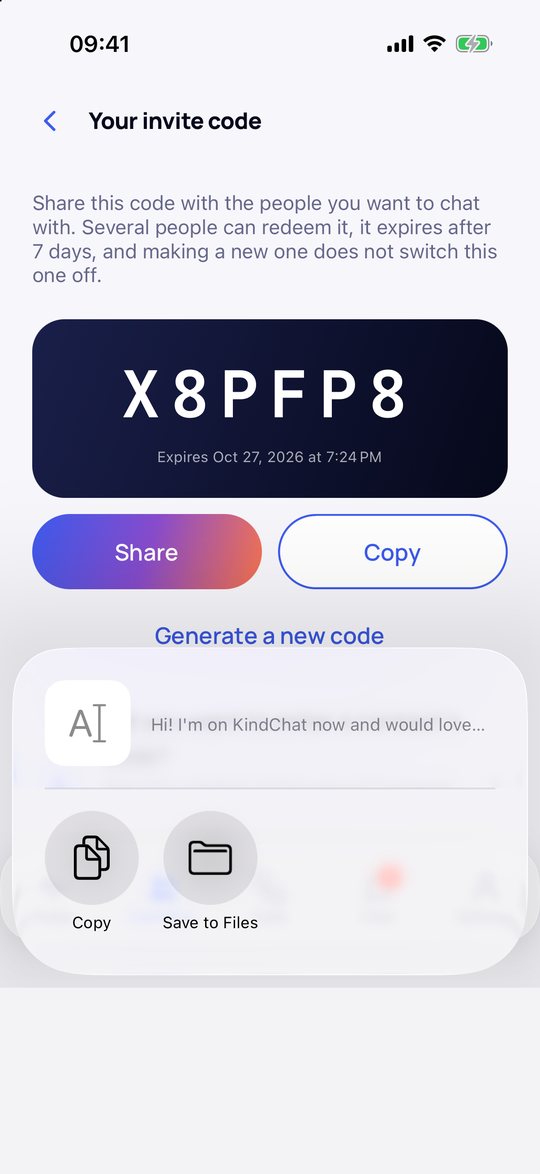
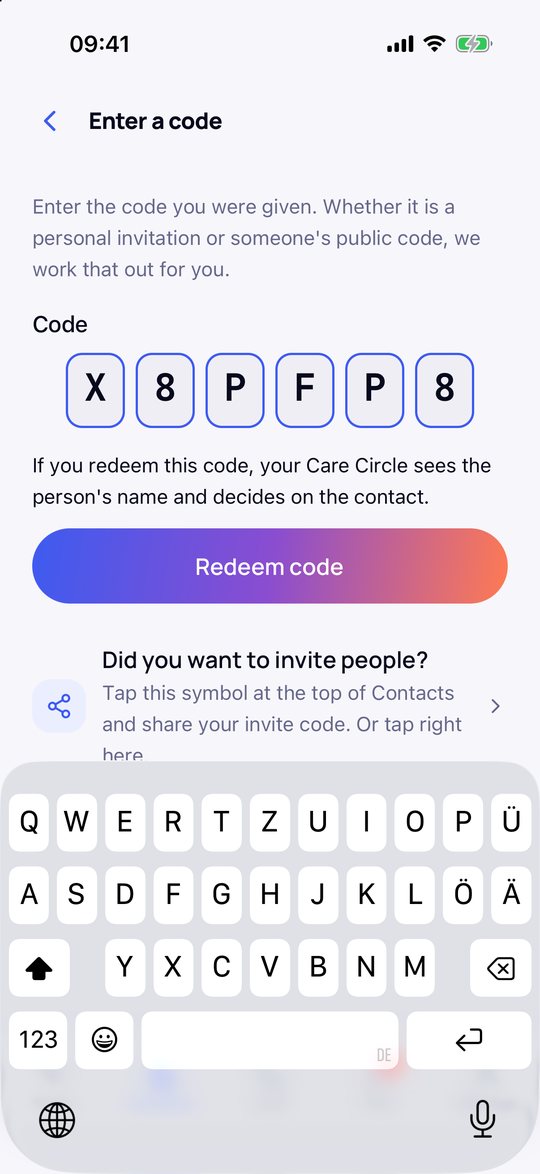
Your invite code is valid for 7 days and works for several people. With Invite you pick people from your address book and KindChat sends them a text message. KindChat only sees the contacts you pick.
8. Approve your child's contacts
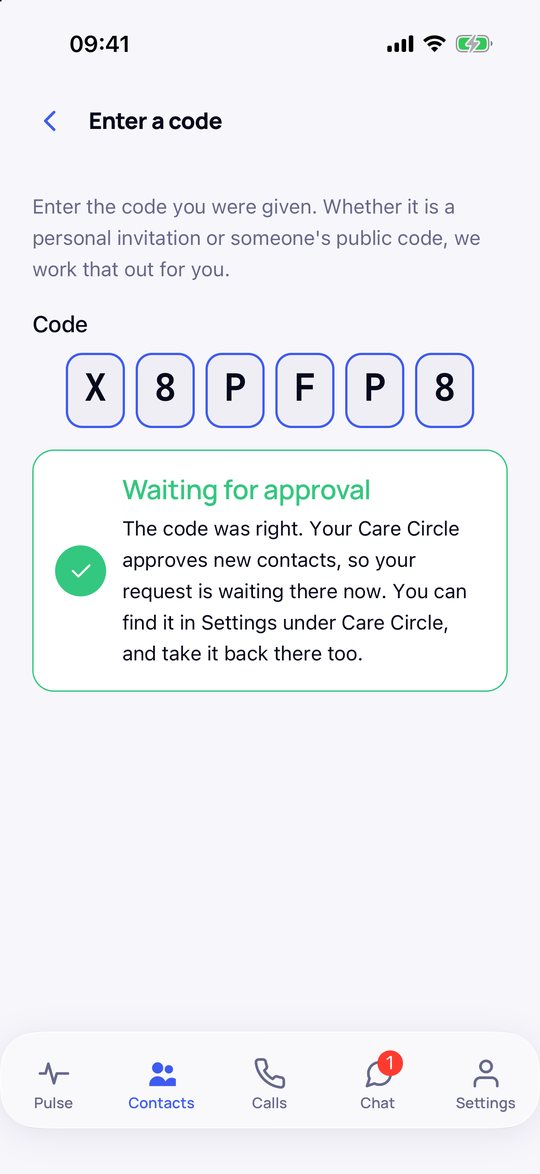
When your child redeems a code, they first see Waiting for approval. You get the notification A request is waiting for you. It shows no name, so nobody can read it on your lock screen.
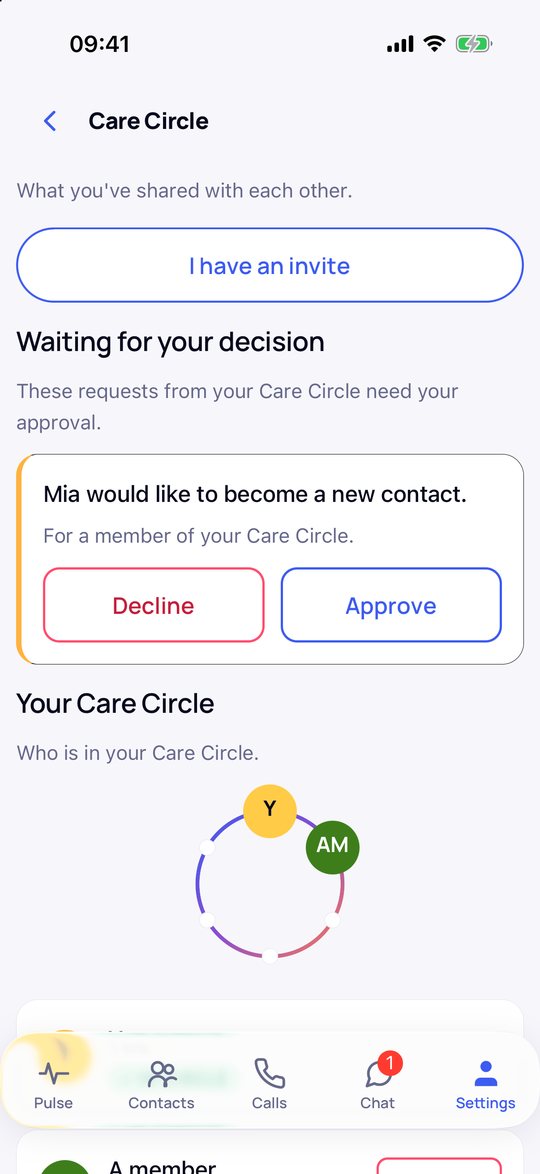
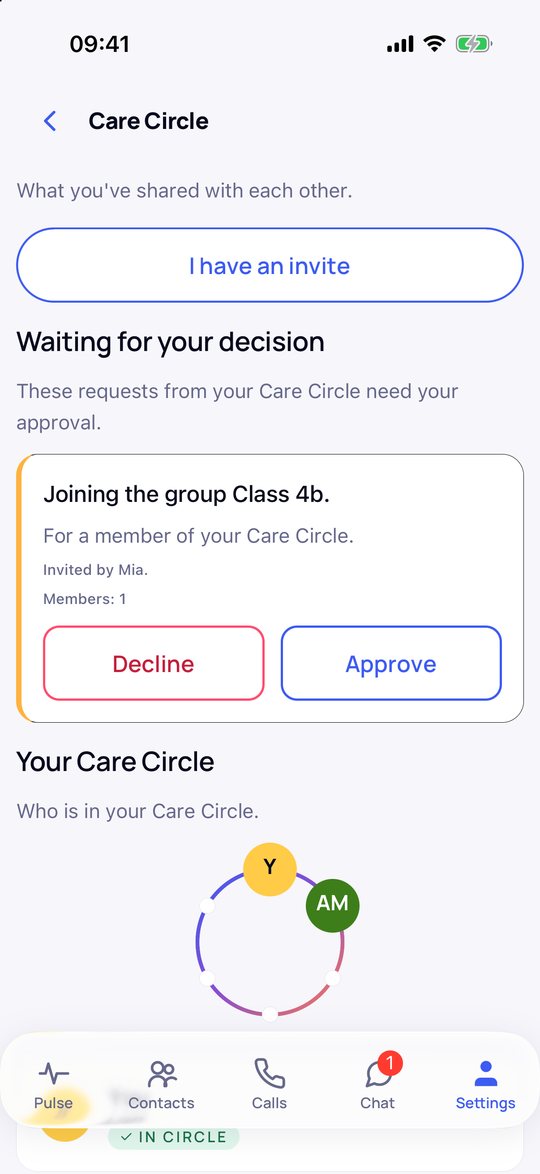
- Tap the notification or open Settings → Care Circle.
- Under Waiting for your decision you see, for example: Mia would like to become a new contact.
- Tap Approve or Decline. The other person is not told why.
9. Create a group
The class group is best set up by one person, for example the class rep. Creating and joining groups is free.
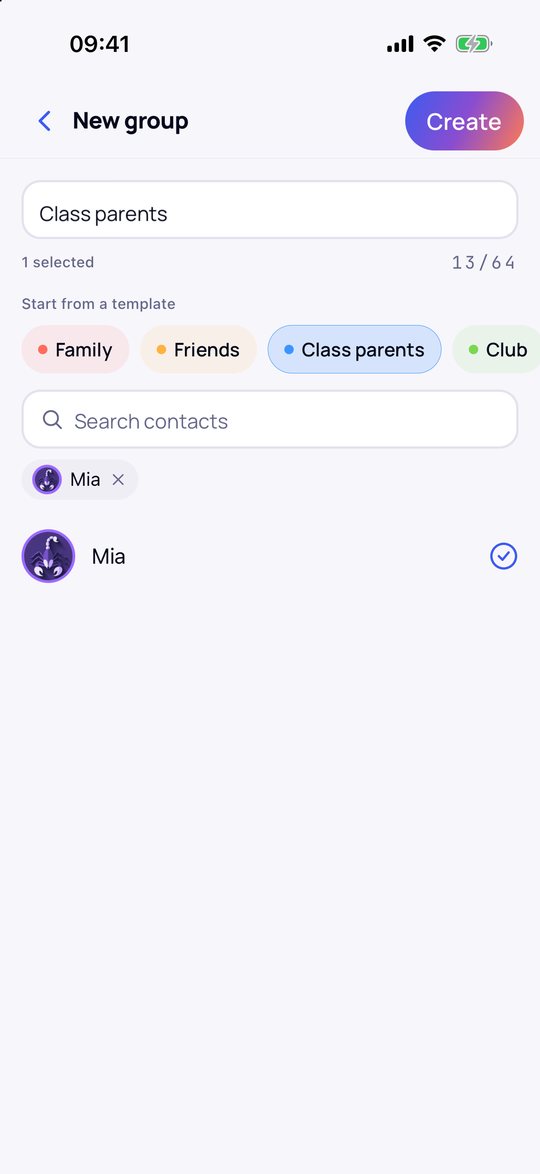
- In the Chat tab, tap New chat at the top and then New group.
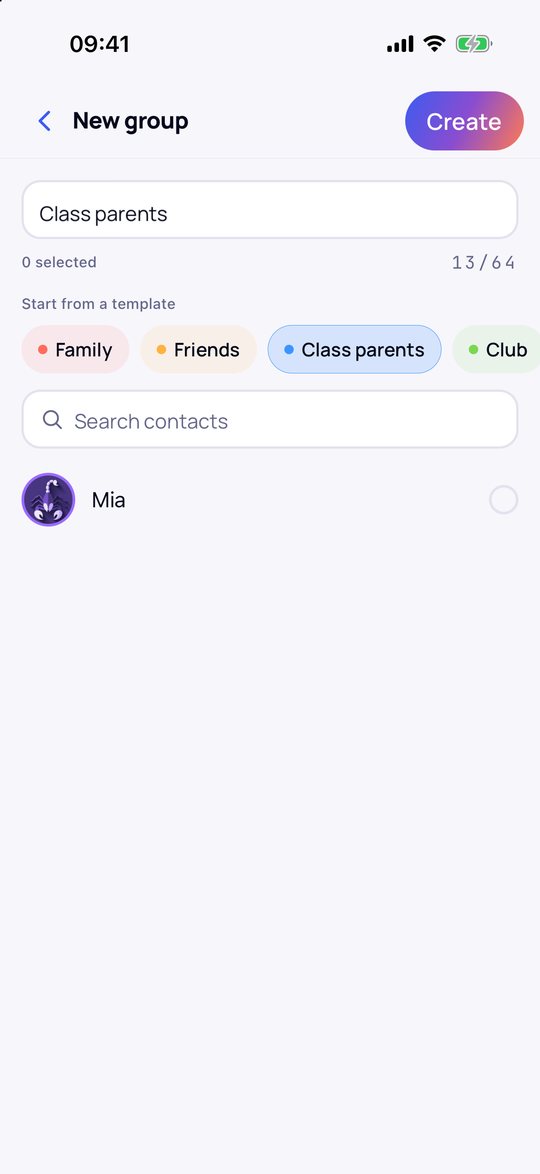
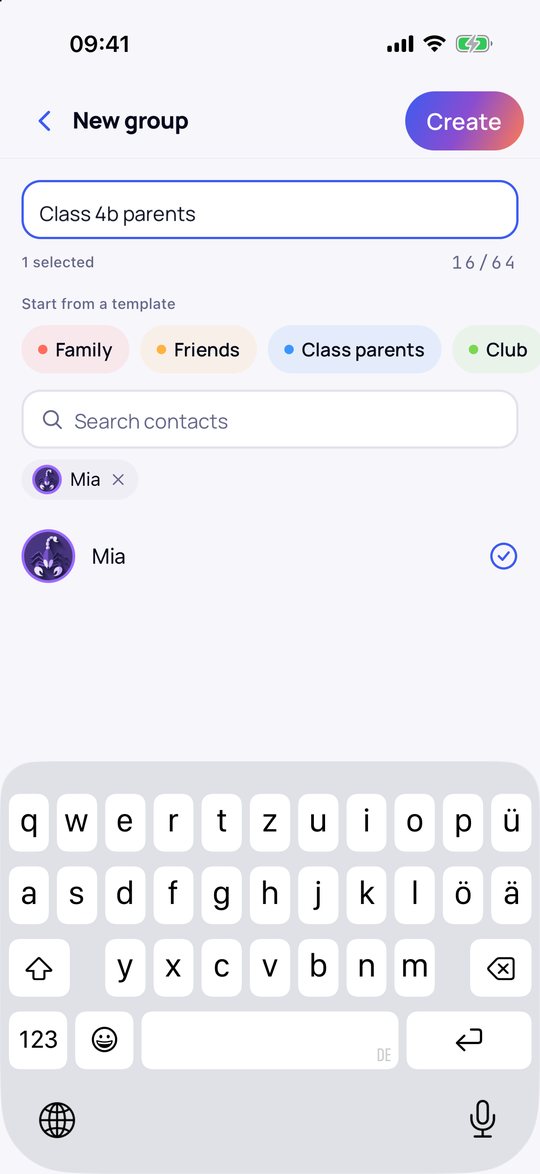
- Choose the template Class parents and the first members from your contacts.
- Change the name, for example to Class 4b parents, and tap Create.
10. Invite by code or QR code
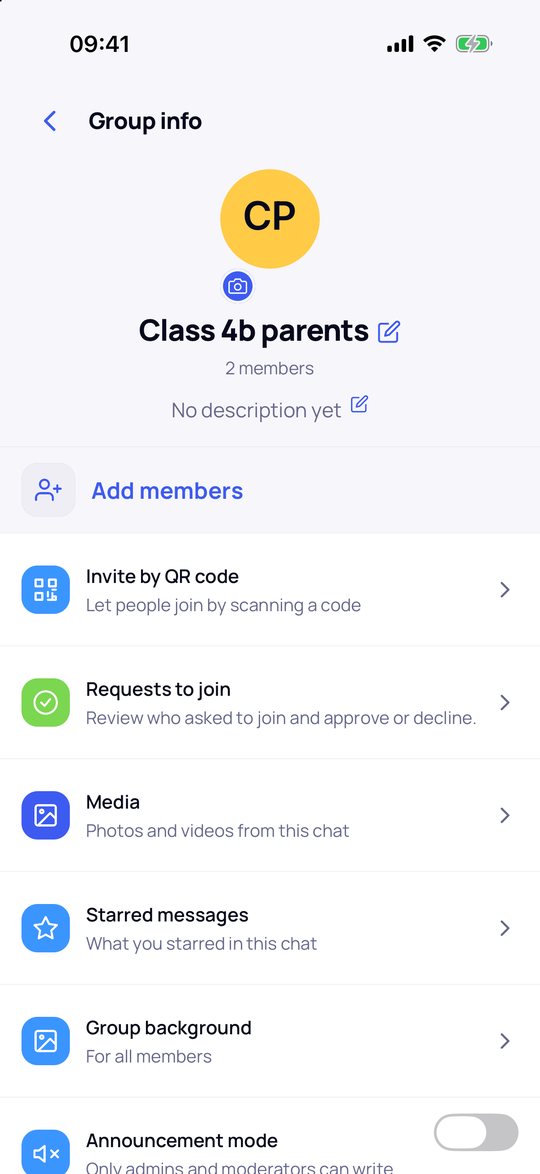
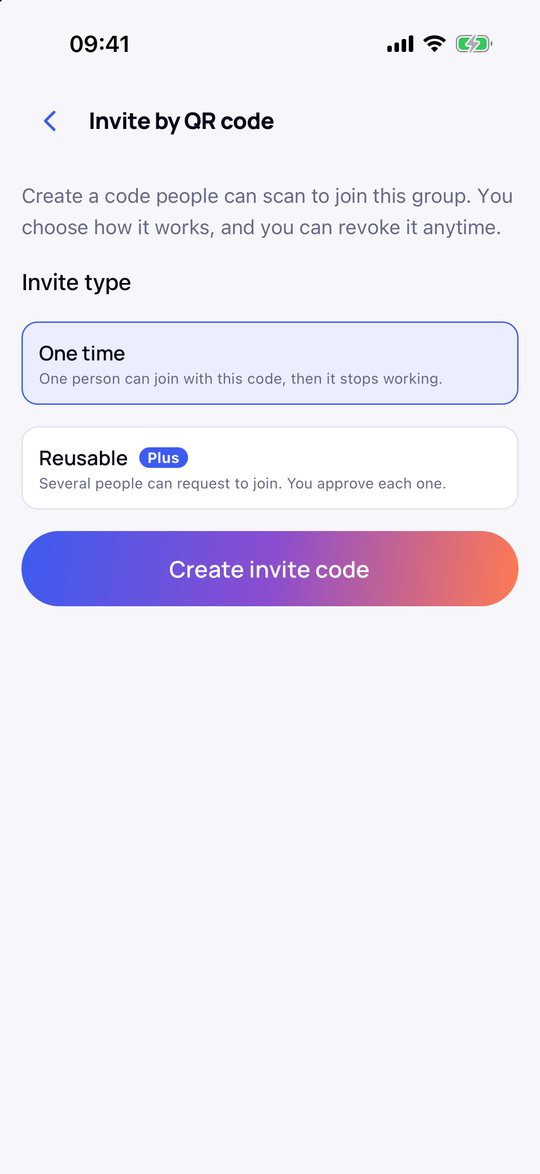
Create the code: in the group, tap the name at the top and then Invite by QR code. Choose Reusable (with a Care Circle or Plus); each person then sends a request to join, which you confirm under Requests to join. Tap Create invite code. At a parents' evening, show the QR code; from a distance, tap Share link. The code is valid for 7 days.
Join: in the Chat tab, tap New chat and then Join a group via QR. Scan the QR code or enter the 6-character code and tap Join group.
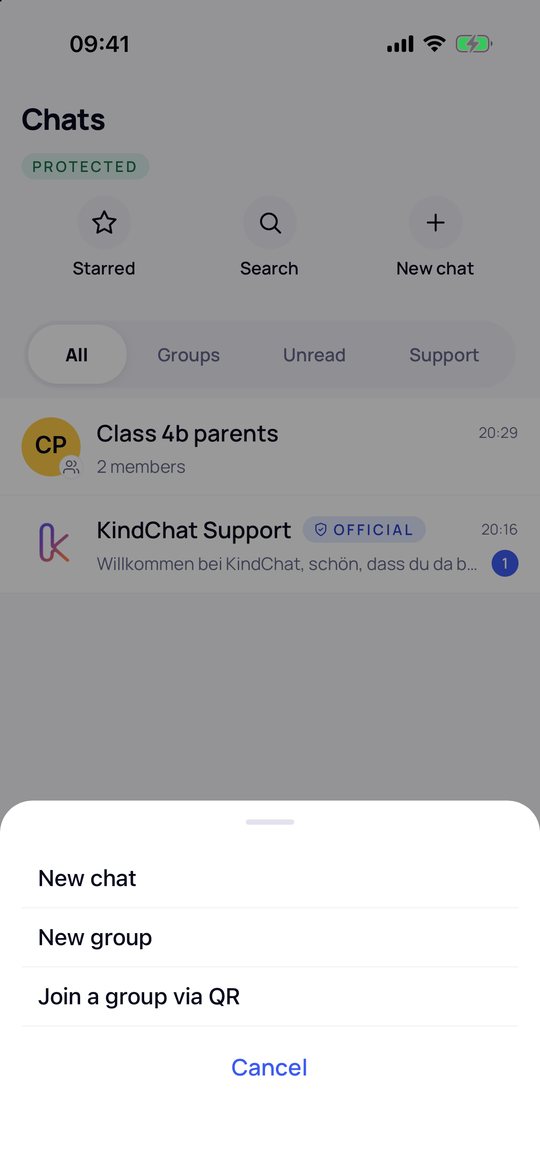
Important: a group code only works for people who are already contacts of the person who created it. So first send your contact code to everyone (step 7), for example one last time in the old WhatsApp group. Otherwise they see This code is not valid.
11. Your child in a group
If your child is added to a group or joins one by code, for example the children's class group, the membership waits for your approval. Under Settings → Care Circle you see the group name, who invited your child and how many members the group has. You approve it as in step 8. A group that your child creates with their own approved contacts does not need approval.
12. Your own quiet hours
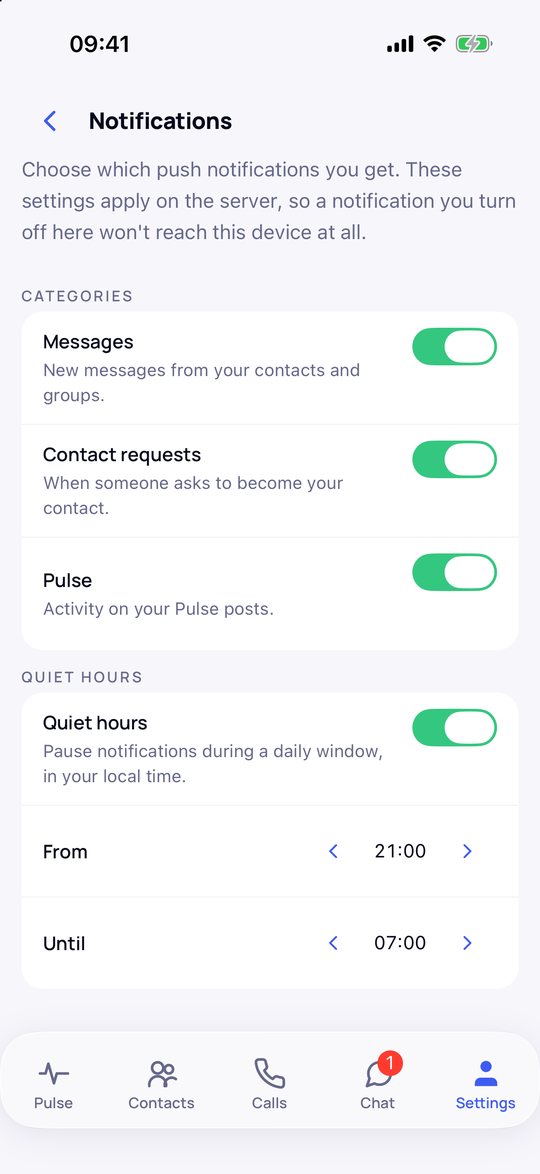
Open Settings → Notifications, turn on the switch under Quiet hours and set the start and end time, for example 21:00 to 07:00. Everyone sets their quiet hours on their own phone. It is best to do this together on your child's phone.
13. Quiet hours for a group
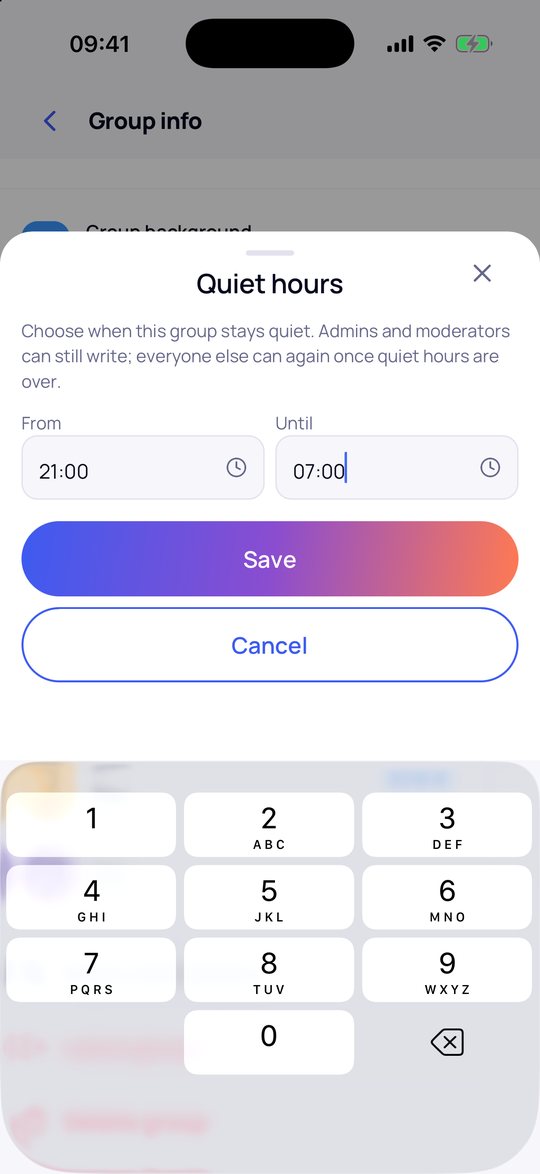
Admins open the group info, tap Quiet hours, enter the start and end time and tap Save. During that time only admins and moderators can write. There you will also find Messages per day and Announcement mode. These settings come with a Care Circle or Plus.
14. Report, block, get help
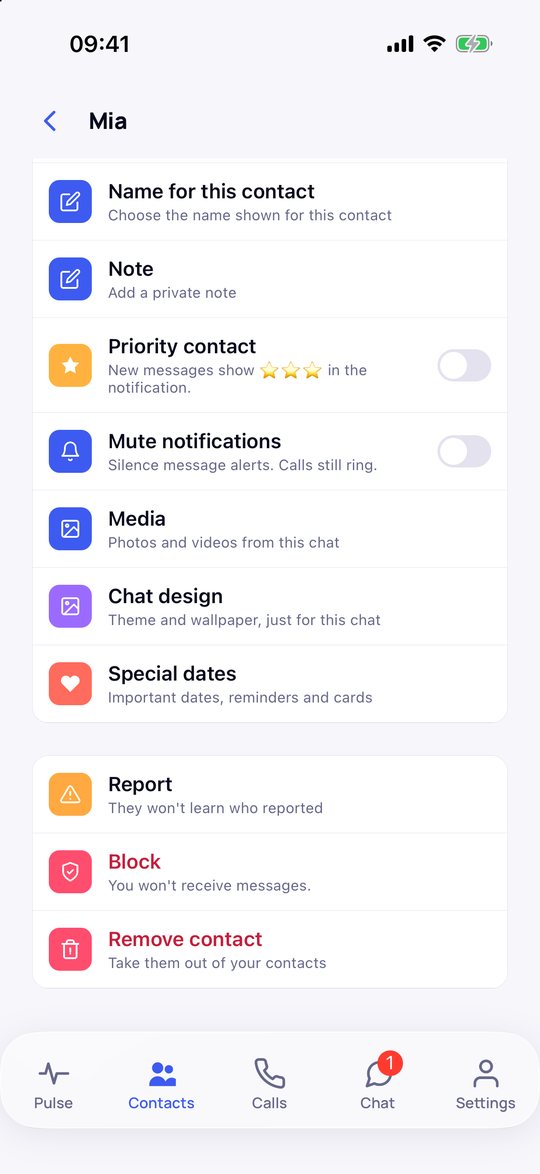
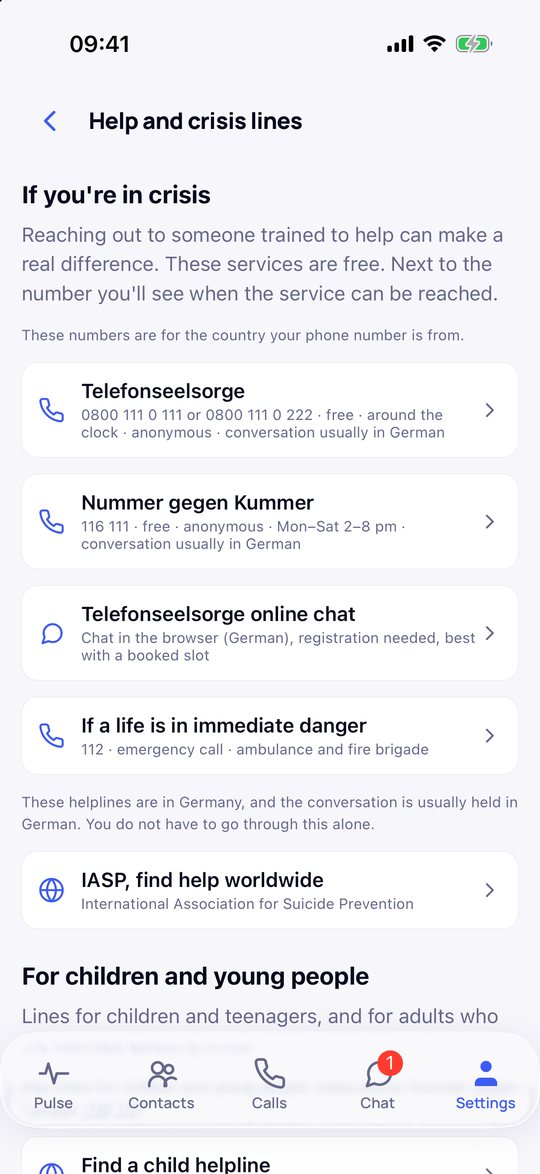
Report and block: in a chat, tap the name at the top and choose Report or Block. The person is not told who reported them. Help: under Settings → Help & crisis numbers you find support services for the country of your phone number, including ones for children and young people. Screen lock: under Settings → Account & Security → Screen lock you can protect KindChat with Face ID, your fingerprint or your phone's passcode.
Questions and answers
Can I read my child's messages?
No. You approve new contacts and groups. You don't see messages, calls or photos. Your child can always see that approval is switched on.
My child entered the code, but nothing happens.
A code is valid for 14 days and only for one child. Create a new code (step 3) and send it again.
We are two parents. Do we need two Care Circles?
No. Your child belongs to exactly one Care Circle, and the person who created it does the approving. The other parent installs KindChat as normal.
What happens when my child turns 16?
When your child turns 16, they confirm their account themselves and then use KindChat independently. Until then, approvals stay on.
Does KindChat really catch everything?
No filter is perfect. KindChat checks every message on the phone before it is encrypted, and again when it arrives. Still, talk to your child about what to do if something feels wrong. How we handle data is explained in the privacy policy.